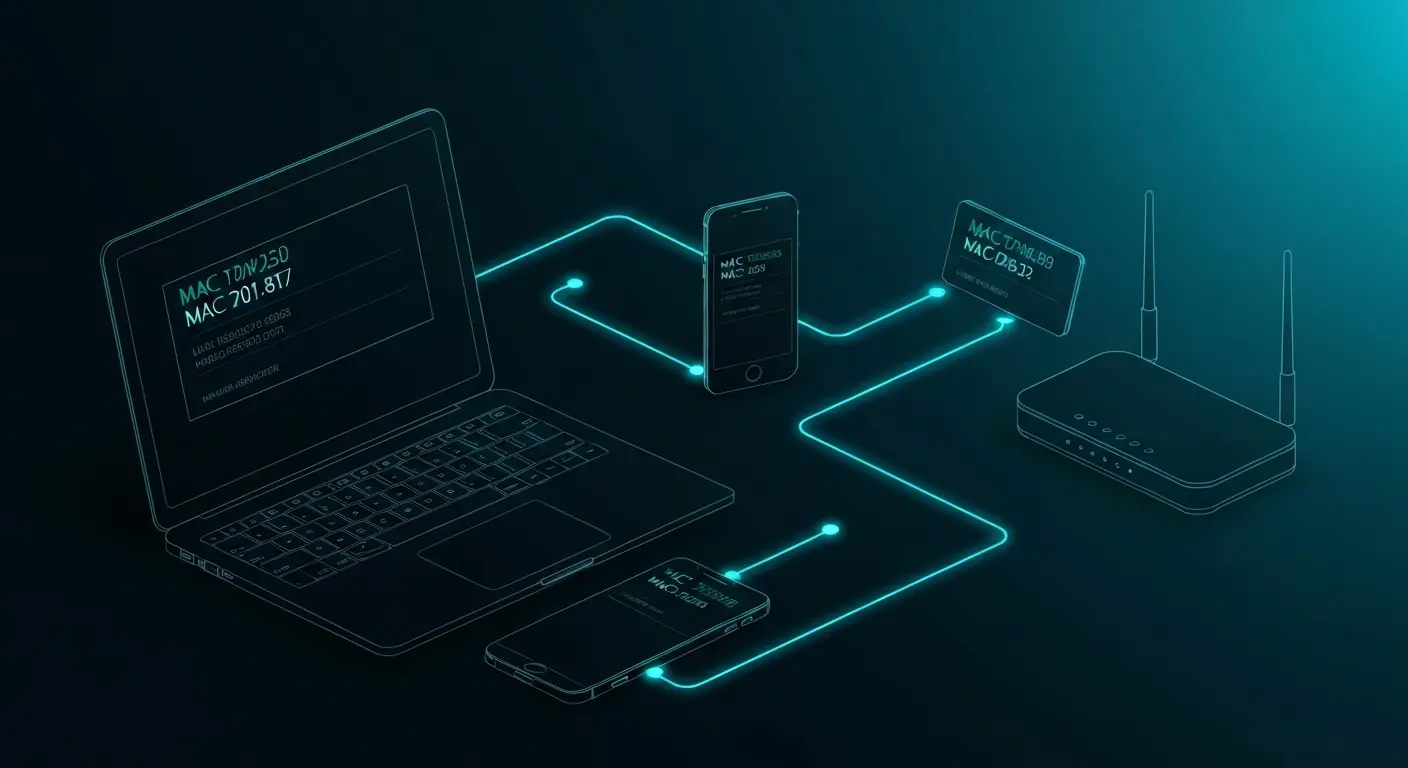
How to Find Your MAC Address on Any Device
Introduction: Why You Need to Know Your MAC Address
Your MAC (Media Access Control) address is a unique identifier assigned to every network interface on your device. Think of it as your network card's serial number—it's burned into the hardware at manufacturing and (typically) doesn't change.
But when do you actually need to find your MAC address? Here are the most common scenarios:
- Network troubleshooting: Diagnosing connectivity issues or tracking down which device is hogging bandwidth
- MAC address filtering: Configuring your router to whitelist or blacklist specific devices
- Device registration: Connecting to enterprise networks, university Wi-Fi, or corporate VPNs that require MAC authentication
- Network administration: Managing DHCP reservations or monitoring ARP tables
- IoT device setup: Registering smart home devices, printers, or network cameras
- Security audits: Identifying all devices on your network
Whether you're a sysadmin managing hundreds of endpoints or a home user trying to connect to your router's admin panel, knowing how to find your MAC address is essential.
In this guide, we'll walk through exact steps and commands for every major platform: Windows, macOS, Linux, iOS, Android, ChromeOS, and even how to find MAC addresses of remote devices on your network.
Let's dive in.
Finding Your MAC Address on Windows
Windows gives you several ways to check your MAC address, from GUI methods for casual users to command-line tools for power users and administrators.
Method 1: Using Command Prompt (ipconfig /all)
This is the fastest and most reliable method for any version of Windows.
Steps:
- Press
Win + Rto open the Run dialog - Type
cmdand press Enter - In the Command Prompt window, type:
ipconfig /all- Look for your active network adapter (usually "Ethernet adapter" or "Wireless LAN adapter Wi-Fi")
- Find the line labeled Physical Address: that's your MAC address
Example output:
Wireless LAN adapter Wi-Fi:
   Connection-specific DNS Suffix  . : home
   Description . . . . . . . . . . . : Intel(R) Wi-Fi 6 AX201 160MHz
   Physical Address. . . . . . . . . : A4-B1-C7-2D-3E-4F
   DHCP Enabled. . . . . . . . . . . : Yes
In this example, A4-B1-C7-2D-3E-4F is the MAC address (Windows displays it with hyphens).
Method 2: Windows Settings UI
For users who prefer clicking over typing:
- Open Settings (
Win + I) - Go to Network & Internet
- Click on Wi-Fi or Ethernet (depending on your connection)
- Click Hardware properties
- Scroll down to find Physical address (MAC)
Method 3: PowerShell (Get-NetAdapter)
For scripting and automation, PowerShell offers more control:
Get-NetAdapter | Select-Object Name, MacAddress, StatusThis displays all network adapters with their MAC addresses and connection status.
To get just the active adapter:
Get-NetAdapter | Where-Object {$_.Status -eq "Up"} | Select-Object Name, MacAddressMethod 4: Windows Management Instrumentation (wmic)
The wmic command provides detailed hardware information:
wmic nic get MACAddress, NameThis lists all network interface cards and their MAC addresses.
Pro tip: On Windows, disabled or virtual adapters will also show up. Make sure you're looking at your physical Wi-Fi or Ethernet adapter, not virtual network interfaces created by VPNs or virtual machines.
Finding Your MAC Address on macOS
macOS provides both a sleek GUI method and powerful Terminal commands for checking your MAC address.
Method 1: System Settings (macOS Ventura and later)
Apple redesigned System Settings in macOS Ventura. Here's the new path:
- Click the Apple menu () → System Settings
- Click Network in the sidebar
- Select your active connection (Wi-Fi or Ethernet)
- Click Details
- The MAC address is shown as MAC Address (for Ethernet) or Wi-Fi Address (for Wi-Fi)
Method 2: System Preferences (older macOS versions)
On macOS Monterey and earlier:
- Apple menu → System Preferences
- Click Network
- Select Wi-Fi or Ethernet from the left sidebar
- Click Advanced
- The MAC address is at the bottom labeled Wi-Fi Address or Ethernet ID
Method 3: Terminal (ifconfig)
For developers and sysadmins, the Terminal is faster:
ifconfig en0 | grep etherOutput:
ether a8:20:66:3f:12:34Here, a8:20:66:3f:12:34 is your MAC address.
en0is typically your primary Ethernet or Wi-Fi interfaceen1might be your secondary interface (Thunderbolt, USB adapter, etc.)
To see all interfaces:
ifconfig | grep etherMethod 4: networksetup command
macOS's networksetup tool provides a cleaner output:
networksetup -getmacaddress en0Output:
Ethernet Address: a8:20:66:3f:12:34 (Device: en0)To check all hardware ports:
networksetup -listallhardwareportsThis shows the hardware name, device name (like en0), and MAC address for every interface.
Pro tip: On modern Macs, you may see different MAC addresses for Wi-Fi and Ethernet. Some devices also use randomized MAC addresses for privacy (we'll cover this later).
Finding Your MAC Address on Linux
Linux offers the most flexibility—multiple commands, multiple output formats, and the raw sysfs interface for direct hardware access.
Method 1: ip link show (modern standard)
The ip command is the modern replacement for deprecated tools like ifconfig:
ip link showOutput:
2: eth0: <BROADCAST,MULTICAST,UP,LOWER_UP> mtu 1500 qdisc fq_codel state UP mode DEFAULT group default qlen 1000
    link/ether 52:54:00:12:34:56 brd ff:ff:ff:ff:ff:ff
The MAC address is after link/ether: 52:54:00:12:34:56.
To show only a specific interface:
ip link show eth0To show just the MAC address:
ip -br link show eth0 | awk '{print $3}'Method 2: ifconfig (legacy, but still common)
Many admins still use ifconfig out of habit:
ifconfigOr for a specific interface:
ifconfig eth0Output:
eth0: flags=4163<UP,BROADCAST,RUNNING,MULTICAST>  mtu 1500
        inet 192.168.1.100  netmask 255.255.255.0  broadcast 192.168.1.255
        ether 52:54:00:12:34:56  txqueuelen 1000  (Ethernet)
The line ether 52:54:00:12:34:56 shows the MAC address.
Note: On some distributions, ifconfig is deprecated or not installed by default. Use ip link instead.
Method 3: Direct sysfs access
Linux exposes hardware information through the /sys filesystem:
cat /sys/class/net/eth0/addressOutput:
52:54:00:12:34:56To list all interfaces and their MAC addresses:
for i in /sys/class/net/*; do echo "$i: $(cat $i/address)"; doneMethod 4: NetworkManager (nmcli)
If you're using NetworkManager (common on Ubuntu, Fedora, RHEL):
nmcli device show eth0 | grep HWADDROutput:
GENERAL.HWADDR: 52:54:00:12:34:56Or to see all connections:
nmcli connection showPro tip: Virtual interfaces (like docker0, virbr0, lo) will have MAC addresses too. Make sure you're checking your physical network interface—usually eth0, wlan0, enp3s0, or wlp2s0 depending on your system's naming scheme.
Finding Your MAC Address on iOS and iPadOS
Apple makes finding your MAC address (called "Wi-Fi Address" in iOS) straightforward, though it's buried a few levels deep.
Steps for iOS 14 and later:
- Open the Settings app
- Tap General
- Tap About
- Scroll down to find Wi-Fi Address
That's your device's MAC address (for Wi-Fi). It will look something like A1:B2:C3:D4:E5:F6.
Important: Private Wi-Fi Address (iOS 14+)
Starting with iOS 14, iPhones and iPads use Private Wi-Fi Address by default. This feature generates a randomized MAC address for each Wi-Fi network you connect to, improving privacy.
To check if it's enabled:
- Settings → Wi-Fi
- Tap the (i) icon next to your connected network
- Look for Private Wi-Fi Address toggle
When enabled, your device presents a different MAC address to each network. If you need to register your device's MAC address with a network admin, you may need to:
- Disable Private Wi-Fi Address for that specific network, OR
- Provide the randomized MAC address shown on the network detail screen
Pro tip: For network troubleshooting or device registration on enterprise networks, administrators often need the actual hardware MAC address (found in Settings → General → About), not the randomized one.
Finding Your MAC Address on Android
Android's Settings interface varies significantly between manufacturers (Samsung, Google, OnePlus, Xiaomi, etc.), but the general path is similar.
Method 1: Standard Android (Pixel, stock Android)
- Open Settings
- Tap About phone
- Tap Status (or Status information)
- Look for Wi-Fi MAC address
Method 2: Samsung Galaxy devices
- Settings → About phone
- Tap Status
- Find Wi-Fi MAC address
Method 3: Alternative path (some manufacturers)
- Settings → Network & internet
- Tap Wi-Fi
- Tap Wi-Fi preferences or the gear icon
- Tap Advanced
- Look for MAC address
Android 10+ Privacy: Randomized MAC Addresses
Similar to iOS, Android 10 and later uses randomized MAC addresses by default for each Wi-Fi network.
To check or disable randomization:
- Settings → Network & internet → Wi-Fi
- Tap your connected network name
- Tap Advanced
- Look for Privacy → Use randomized MAC (or "MAC address type")
- Toggle to Use device MAC if needed
Note: Some Android devices show both:
- Randomized MAC address: Used when connecting to networks
- Device MAC address: The actual hardware address
For network registration or MAC filtering, you'll typically need the device MAC address.
Pro tip: If you're an Android developer with ADB access, you can also retrieve the MAC address via command line:
adb shell cat /sys/class/net/wlan0/addressFinding Your MAC Address on ChromeOS
ChromeOS is Linux-based but uses a simplified interface. Here's how to find your MAC address on Chromebooks:
Steps:
- Click the status area (bottom-right corner where the clock is)
- Click Settings (gear icon)
- In the Settings search bar, type MAC address or navigate to:
- Network → Click your connected Wi-Fi network name
- The MAC address is listed under the network details (may be labeled as Hardware address or MAC address)
Alternative: ChromeOS Shell (Crosh)
For developers or advanced users:
- Press
Ctrl + Alt + Tto open Crosh (Chrome shell) - Type
shelland press Enter (only works in Developer Mode) - Run:
ifconfigOr:
ip link showThe Wi-Fi interface is usually wlan0 or mlan0 on ChromeOS.
Finding MAC Addresses on Network Equipment and Routers
Sometimes you need to find the MAC address of a device that doesn't have a screen or accessible interface (like network printers, smart home devices, or IoT hardware).
Method 1: Check the Device Label
Most network equipment has a sticker on the back or bottom with the MAC address printed on it. It may be labeled as:
- MAC Address
- Hardware Address
- Ethernet ID
- Device ID
Method 2: Router Admin Panel (ARP Table)
Your router maintains an ARP (Address Resolution Protocol) table showing all devices currently connected to your network.
Steps (varies by router brand):
- Open your router's admin interface (typically
http://192.168.1.1orhttp://192.168.0.1) - Log in with your admin credentials
- Look for sections like:
- Connected Devices
- DHCP Client List
- Device List
- LAN Status
- ARP Table
You'll see a table showing:
- Device name (hostname)
- IP address
- MAC address
Method 3: Using Command-Line ARP
On your computer (while connected to the same network), you can query the local ARP cache:
Windows:
arp -amacOS/Linux:
arp -aOr for a specific IP:
arp 192.168.1.50Example output:
? (192.168.1.50) at aa:bb:cc:dd:ee:ff on en0 ifscope [ethernet]Method 4: Network Scanning (nmap)
For more comprehensive network discovery, use nmap:
sudo nmap -sn 192.168.1.0/24This scans your local subnet and reports all active devices with their IP addresses. To also show MAC addresses:
sudo nmap -sP 192.168.1.0/24Example output:
Nmap scan report for 192.168.1.50
Host is up (0.0012s latency).
MAC Address: AA:BB:CC:DD:EE:FF (Unknown)
Note: Scanning networks you don't own or have permission to scan may be illegal. Only use these tools on your own network.
Finding MAC Addresses of Remote Devices
As a network administrator, you often need to identify devices without physical access.
Method 1: SNMP Queries
If the device supports SNMP (Simple Network Management Protocol):
snmpwalk -v2c -c public 192.168.1.50 1.3.6.1.2.1.2.2.1.6This queries the device's MAC address via SNMP OID.
Method 2: SSH/Telnet Access
If you have SSH or Telnet access to a remote Linux/Unix device:
ssh user@192.168.1.50 "ip link show"Or:
ssh user@192.168.1.50 "cat /sys/class/net/eth0/address"Method 3: Switch/Managed Router MAC Tables
On enterprise networks with managed switches, you can query the switch's MAC address table:
Cisco IOS:
show mac address-tableAruba:
show mac-address-tableThis shows which MAC addresses are connected to which switch ports.
Method 4: DHCP Server Logs
Check your DHCP server logs (often on your router or dedicated DHCP server). DHCP assigns IP addresses to devices and logs their MAC addresses in the process.
On Linux with dnsmasq:
cat /var/lib/misc/dnsmasq.leasesPro tip: Use a MAC Address Lookup Tool to identify the manufacturer of any MAC address. The first six characters (OUI) are assigned to specific companies, so you can tell if a device is made by Apple, Intel, Samsung, etc.
Randomized MAC Addresses vs. Hardware MAC Addresses
Modern operating systems increasingly use MAC address randomization as a privacy feature. This prevents tracking across Wi-Fi networks and public hotspots.
How MAC Randomization Works
Instead of broadcasting your device's real (hardware) MAC address, the OS generates a random MAC address for each network or connection session. This means:
- Public Wi-Fi providers can't track you across locations
- Advertisers can't correlate your device across stores with Wi-Fi tracking
- Your device has better privacy on untrusted networks
Where It's Enabled by Default
- iOS 14+: Private Wi-Fi Address (on by default for each network)
- Android 10+: Randomized MAC (on by default)
- Windows 10/11: Random hardware addresses (Settings → Network & Internet → Wi-Fi → Random hardware addresses)
- Linux: NetworkManager supports MAC randomization (
wifi.mac-address-randomization)
When to Disable MAC Randomization
You may need to turn it off for:
- Enterprise networks that use MAC address authentication
- Network registration (university, hotel, captive portals)
- MAC address filtering on your home router
- DHCP reservations that assign fixed IP addresses based on MAC
- Troubleshooting network connectivity issues
How to Distinguish Between Them
Hardware MAC addresses:
- Persistent across reboots
- Globally unique (assigned by IEEE)
- First 6 characters identify the manufacturer
Randomized MAC addresses:
- Change periodically or per-network
- May use locally administered bit (2nd character is 2, 6, A, or E in the first octet)
- Don't correspond to any real manufacturer
Example:
- Hardware MAC:
A4:B1:C7:2D:3E:4F(Intel Corporation) - Randomized MAC:
DA:12:34:56:78:9A(locally administered)
If you need the real hardware MAC address for device registration, always look in:
- iOS: Settings → General → About → Wi-Fi Address
- Android: Settings → About phone → Status → Wi-Fi MAC address (device MAC)
- Windows/Mac/Linux: Use the command-line methods above (these usually show hardware address unless explicitly randomized)
Frequently Asked Questions (FAQ)
1. What is a MAC address and why does it matter?
A MAC (Media Access Control) address is a unique 48-bit identifier assigned to every network interface by the manufacturer. It operates at Layer 2 of the OSI model and is used for local network communication. Your MAC address is essential for:
- DHCP servers to assign IP addresses
- Routers to forward data to the correct device
- Network access control and security policies
- Device identification and inventory management
Unlike IP addresses which can change, hardware MAC addresses are typically permanent (though software can override them).
2. Can two devices have the same MAC address?
In theory, no—MAC addresses should be globally unique. The IEEE assigns blocks of addresses (OUIs) to manufacturers who ensure uniqueness within their products.
However, in practice:
- Cloned or spoofed MAC addresses can create duplicates
- Virtual machines may generate duplicate MACs if not configured properly
- Cheap network hardware from unreliable manufacturers may reuse addresses
- MAC randomization can (rarely) generate collisions
On a local network, duplicate MAC addresses cause connectivity problems—only one device will work properly.
3. How do I change my MAC address?
Spoofing or cloning a MAC address is possible on most platforms, though it's not permanent (resets on reboot unless configured otherwise).
Windows:
- Device Manager → Network adapter → Properties → Advanced → Network Address
- Or use third-party tools like Technitium MAC Address Changer
macOS:
sudo ifconfig en0 ether aa:bb:cc:dd:ee:ffLinux:
sudo ip link set dev eth0 down
sudo ip link set dev eth0 address aa:bb:cc:dd:ee:ff
sudo ip link set dev eth0 up
Or configure it persistently via NetworkManager or systemd-networkd.
Use cases:
- Testing network policies
- Privacy on public Wi-Fi
- Bypassing MAC filtering (if authorized)
Legal note: Spoofing MAC addresses isn't illegal per se, but using it to bypass access controls or impersonate another device without permission may violate terms of service or laws in your jurisdiction.
4. Why do I see multiple MAC addresses on my device?
Most computers have multiple network interfaces:
- Wi-Fi adapter: One MAC address
- Ethernet port: Another MAC address
- Bluetooth: Yet another MAC address (also uses MAC addressing)
- Virtual adapters: VPNs, virtual machines, WSL, Docker bridges all create virtual interfaces with their own MACs
Each physical or virtual network interface has its own unique MAC address.
5. What's the difference between MAC address and IP address?
| Feature | MAC Address | IP Address |
|---|---|---|
| Layer | Layer 2 (Data Link) | Layer 3 (Network) |
| Scope | Local network segment | Global (routable across internet) |
| Assignment | Burned into hardware by manufacturer | Assigned by DHCP or manually configured |
| Format | 6 bytes (12 hex digits) | 4 bytes (IPv4) or 16 bytes (IPv6) |
| Purpose | Identifies physical device on LAN | Routes traffic across networks |
| Changes | Rarely (except spoofing/randomization) | Frequently (moving networks, DHCP renewal) |
Think of it this way: MAC addresses are like your device's serial number, while IP addresses are like your mailing address. When you move to a new network, your IP changes but your MAC (usually) stays the same.
6. Can my MAC address be tracked or used to identify me?
Yes and no.
On your local network: Your router, ISP, and other devices on the same subnet can see your MAC address.
On the internet: MAC addresses don't travel beyond your local router. Websites and remote servers can't see your MAC address—they only see your IP address.
In public spaces: Retail stores, airports, and shopping malls sometimes use Wi-Fi tracking to monitor foot traffic based on MAC addresses from smartphones. This is why iOS and Android now randomize MAC addresses by default.
For privacy:
- Enable MAC randomization on public Wi-Fi
- Disable Wi-Fi when not in use
- Be aware that even with randomization, device fingerprinting via other methods is still possible
7. My MAC address lookup shows a different manufacturer than my device brand—why?
This is completely normal. The manufacturer shown in a MAC address lookup is the company that made the network interface chip, not necessarily the device itself.
For example:
- Your Dell laptop might use an Intel Wi-Fi card → MAC lookup shows "Intel Corporation"
- Your Samsung phone might use a Murata module → MAC lookup shows "Murata Manufacturing Co."
- Your custom-built PC with a TP-Link network card → MAC lookup shows "TP-Link Technologies Co."
Only the OUI (first 6 characters) indicates the chip manufacturer. This is often a contract manufacturer or component supplier, not the brand name on the device.
Conclusion
Finding your MAC address is a fundamental skill for anyone who manages networks, troubleshoots connectivity issues, or registers devices on restricted networks. Whether you prefer clicking through GUI menus or typing commands in a terminal, every platform provides multiple ways to check your MAC address.
Quick reference:
- Windows:
ipconfig /all(look for "Physical Address") - macOS:
ifconfig en0 | grep ether - Linux:
ip link show(look for "link/ether") - iOS: Settings → General → About → Wi-Fi Address
- Android: Settings → About phone → Status → Wi-Fi MAC address
- Network devices: Check router's admin panel or use
arp -a
Remember that modern operating systems increasingly use MAC address randomization for privacy. If you're registering a device with a network administrator, make sure you're providing the hardware MAC address, not a randomized one.
Need to look up who manufactured a network device? Use our MAC Address Lookup Tool to identify any MAC address's vendor. Or generate test MAC addresses for development and testing with the Random MAC Address Generator.
For more networking tools and utilities, check out our sister sites:
- Random IBAN Generator for banking dev/test data
- Random IMEI Generator for mobile device testing
- Base64 Decode for encoding/decoding utilities
Last updated: February 2026 | Word count: ~2,950 words
Generate Random MAC Addresses
Bulk generation up to 10,000 addresses. Multiple formats, vendor prefixes, unicast/multicast.
Open MAC GeneratorRelated Articles
What Is a MAC Address? Complete Guide
Learn what a MAC address is, how it works, its format, structure (OUI + NIC), types, and why it matters for networking. Comprehensive guide with examples.
MAC Address Randomization: Privacy and Security Guide
Learn how MAC address randomization works, why it matters for privacy, how it prevents WiFi tracking, and how to enable it on your devices.
MAC Address vs IP Address: Key Differences Explained
Understand the differences between MAC addresses and IP addresses. Layer 2 vs Layer 3, physical vs logical addressing, and when each is used.